
The Manual Installation Method
C:\ProgramData\Blackmagic Design\DaVinci Resolve\Support\Workflow Integration Plugins
Step 1
Download the Manual Installation For Snap Pod, you can grab the file from here

Step 2 - Go To this folder location here:
C:\ProgramData\Blackmagic Design\DaVinci Resolve\Support
/Library/Application Support/Blackmagic Design/DaVinci Resolve
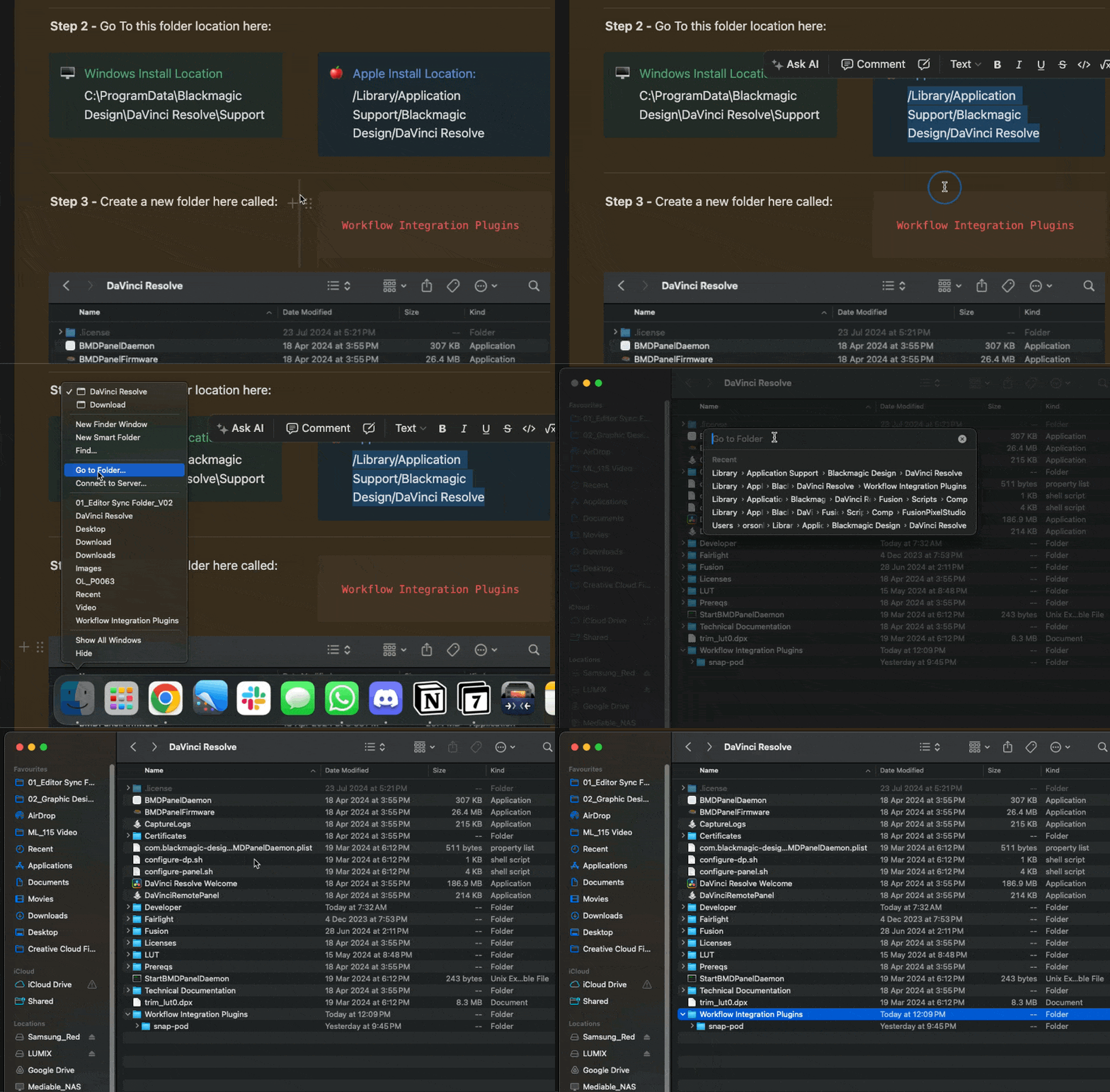
Step 3 - Create a new folder here called:
Workflow Integration Plugins

Step 4 - Unzip your download of ‘Snap Pod Manual Installer’ and copy it inside the folder ‘Workflow Integrations Plugins’

Step 5 - Check that Snap Pod Installed Correctly
1 - Open up DaVinci Resolve
2 - Open any project (doesn’t matter which)
3 - Go Workspace → Workflow Integrations → Snap Pod
Wait a few seconds and the plugin should pop up!
How To Update Snap-Pod
New Update - We don’t need to change the name of the Snap Pod folder to just “Snap Pod”, we can leave it as “Snap-Pod-V1.0.3” when we drag the plugin into our workflow integrations folder. We’ve done this so it’s easier to see what version of Snap Pod you are up to 🙂.